

General information
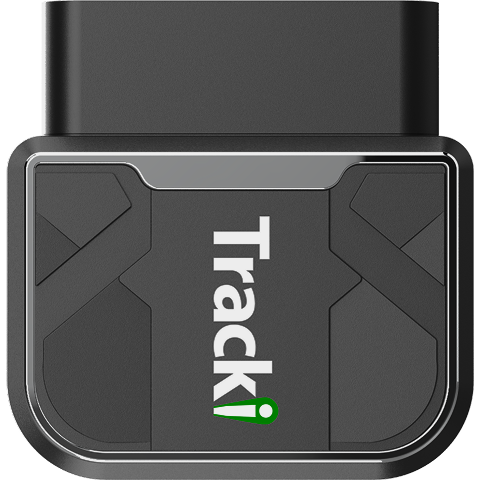
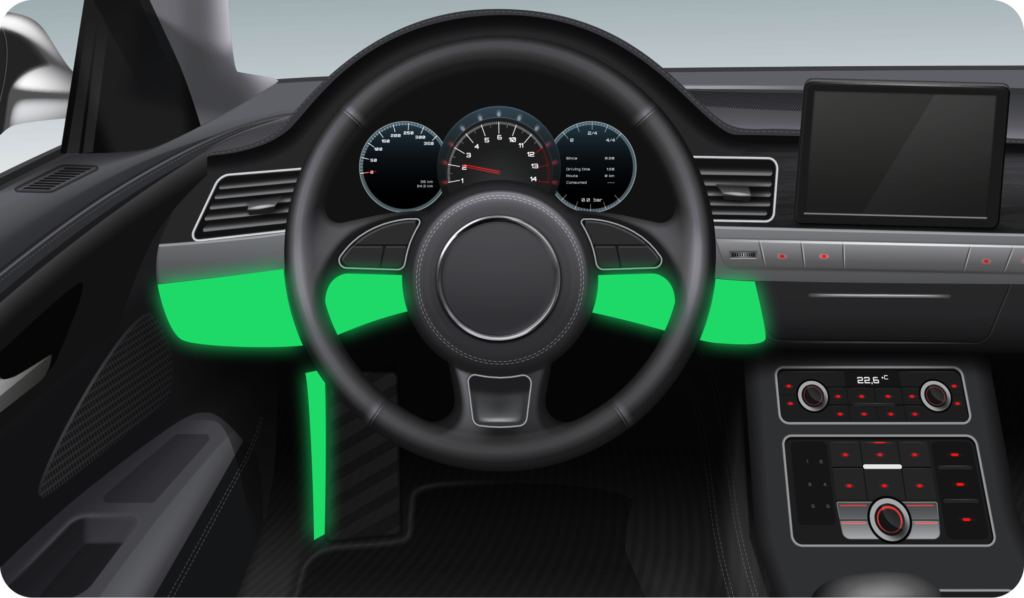
Plug-in device
Initial set-up
Notification

Trip Start / End
Receive an alert when your vehicle starts or ends a trip.
Be notified when trips begin and when they end. The start of a trip is triggered when a vehicle is turned on, and the end of a trip is triggered when a vehicle is turned off.

Move started
Receive an alert when your vehicle start move.
Be notified when the vehicle starts moving. This alert is triggered when vehicle movement is detected.
Geo-fences Enter / Exit
You can set up Geo-fences to send you an alert when a vehicle goes inside and/or outside the zone.
Creating geo-fences will provide you with notifications when vehicles enter and exit any place you have set up. You will be alerted to know exactly when the vehicle arrives in the place, and know exactly when the vehicle leaves the place.

Max speed
Set a speed alert to receive a notification whenever your vehicle exceeds the specified speed.
The alert uses the posted speed limit for each road, and a notification is sent at the end of the trip if the vehicle exceeds the selected speed limit threshold.

Rapid acceleration
Receive an alert when your vehicle rapidly accelerates excessively, moderately, or lightly.

Hard braking
Receive an alert when your vehicle hard brakes excessively, moderately, or lightly.
Idle starts / Idle ends
Get notified each time your vehicle idles beyond your specified time limit.
You'll receive a notification when your vehicle idles in one location longer than the time you set. You can set the threshold from a minimum of 5 minutes up to a maximum of 180 minutes.

Idle duration
Get an alert at the end of a trip if total idle time exceeds your set limit.
This alert appears at the end of a trip, after the vehicle is turned off. You can set the idling threshold from 0 to 180 minutes for any trip.

Impact detection
The device uses internal sensors and software to detect crashes by monitoring impacts and sudden changes in vehicle speed. When a crash is detected, Tracki sends a notification and an SMS to your designated contacts.
Adjustable sensitivity levels help the system focus on real events. Minor incidents, such as soft door dings in parking lots, are often ignored due to low force, while significant impacts with noticeable force and vibration are more likely to be detected, ensuring an effective response in critical situations.
Note: Crash detection and notifications may not be available in certain situations, such as if the OBD device is damaged, dislodged, or if cellular or other signals are weak or unavailable. If the OBD device loses wireless service, no data will be transmitted. Please see the Terms of Service for more details. By enabling this feature, you agree to the Terms of Service and Privacy Policy.

Curfew
Curfew alerts help you monitor vehicle usage by notifying you whenever the vehicle is driven during the scheduled days and times you define.

Diagnostic trouble code
Enable this notification to receive an alert when your vehicle reports a diagnostic trouble code through the OBD device.
Diagnostic Trouble Codes (DTCs) are messages your vehicle generates when it detects a problem.
If a DTC is reported, your OBD tracker can send the code to the app and notify you (if notifications are enabled).

Battery
Turn this on to get notified if your battery voltage falls below your chosen threshold.
Select Low and Critical to receive notifications when voltage drops below 12 V. Select Critical Only to be notified when voltage falls below 11.5 V.

Fuel level
Get notified when your vehicle's fuel level drops below your chosen level.
Once you have set your desired fuel level, app will notify you each time the fuel level drops 5% below the level you have set.

Distance limit
Be notified when the vehicle exceeds the set distance limit.
Set a distance limit per trip and receive a notification when your vehicle reaches it. For example, choose 50 miles to get a notification once the vehicle has driven 50 miles in a single trip.
Fuel economy
Get notified if your vehicle's fuel economy goes above or below your chosen range.
Be notified when your vehicle’s fuel economy goes above or below the set range. This feature helps drivers monitor and stay aware of their vehicle’s fuel consumption.
To adjust range settings, tap the range on the track and drag it along, or use the “+” and “–” controls below.
Note: This feature is only available if your vehicle reports fuel economy through the OBD device.

Tamper detection
Receive an immediate notification whenever the OBD device is removed from the car's OBD port.
Whenever the OBD device is removed, you can receive a notification. It will include the time the device was removed.
Note: After the device is removed from the car's OBD port, it cannot communicate with our servers until it is plugged in again.

Care
Set up a custom care event to track when your vehicle maintenance or service is due.
Lights

Connected to car
Not registered to the cellular network

Connected to cellular network

GPS fix

Searching for GPS
Flashes continuously